Summary at a glance
See how many rows of your file are new, changed, unchanged or have errors.
 CMS Import: CSV Preview Get the app
For Wix CMS · Read-only · Supported in Aria
Compare your file with a CMS collection before you import it: which rows are new, changed or have errors, and every changed cell with its current and new value. Then download a safe import file that keeps the fields your CSV leaves out.
Try the live demo View on App Market7-day free trial, then $5.99/month or $4.79/month billed yearly. Without a plan you see the summary, the first 5 new or changed rows and the first error.
Live demo
This is the same dashboard page sellers install. Try it with our sample file, an edited export of the demo collection, or choose your own CSV file.
This is a demonstration on sample data. The demo site has one made-up collection, Products, and a Pro plan. The app only reads: your file stays in your browser, nothing is saved, and the safe file is built on your computer. Reload the page to start over.
Your own file: use columns such as Name, SKU, Price, Stock, Category and Brand. Without an ID column, choose SKU under Match rows by.
| Name | SKU | Price | Stock | Category | Brand |
|---|---|---|---|---|---|
| Linen Apron | AP-01 | 34 | 12 | Kitchen | Fern & Co (fern-and-co) |
| Ceramic Mug | MG-02 | 18 | 40 | Kitchen | Fern & Co (fern-and-co) |
| Oak Cutting Board | CB-03 | 45 | 8 | Kitchen | North Mill (north-mill) |
| Wool Throw | TH-04 | 89 | 5 | Home | North Mill (north-mill) |
| Soy Candle | CN-05 | 22 | 30 | Home | Fern & Co (fern-and-co) |
| Tea Towel Set | TT-06 | 16 | 25 | Kitchen | North Mill (north-mill) |
What you get
See how many rows of your file are new, changed, unchanged or have errors.
Each changed row shows the current value and the new value for every cell your CSV changes.
The same key in two rows, text in a number or date field, links to items that do not exist, required fields left empty and empty cells that would wipe a value. Each with its row number in your file.
Only the new and changed rows, with every field filled in. Fields your CSV leaves out keep their current values, so the regular CMS import does not wipe them. Not available for collections with fields a CSV cannot carry, such as multi-reference.
Match rows by ID, or by your own field such as SKU or slug when your file has no ID column.
The app only reads your collections and never edits them. It works with CMS exports and with your own spreadsheets.
What you see
Choose a collection, add the CSV, check the columns and the row key, and see the results. The app works in your Wix dashboard and adds nothing to your site pages.
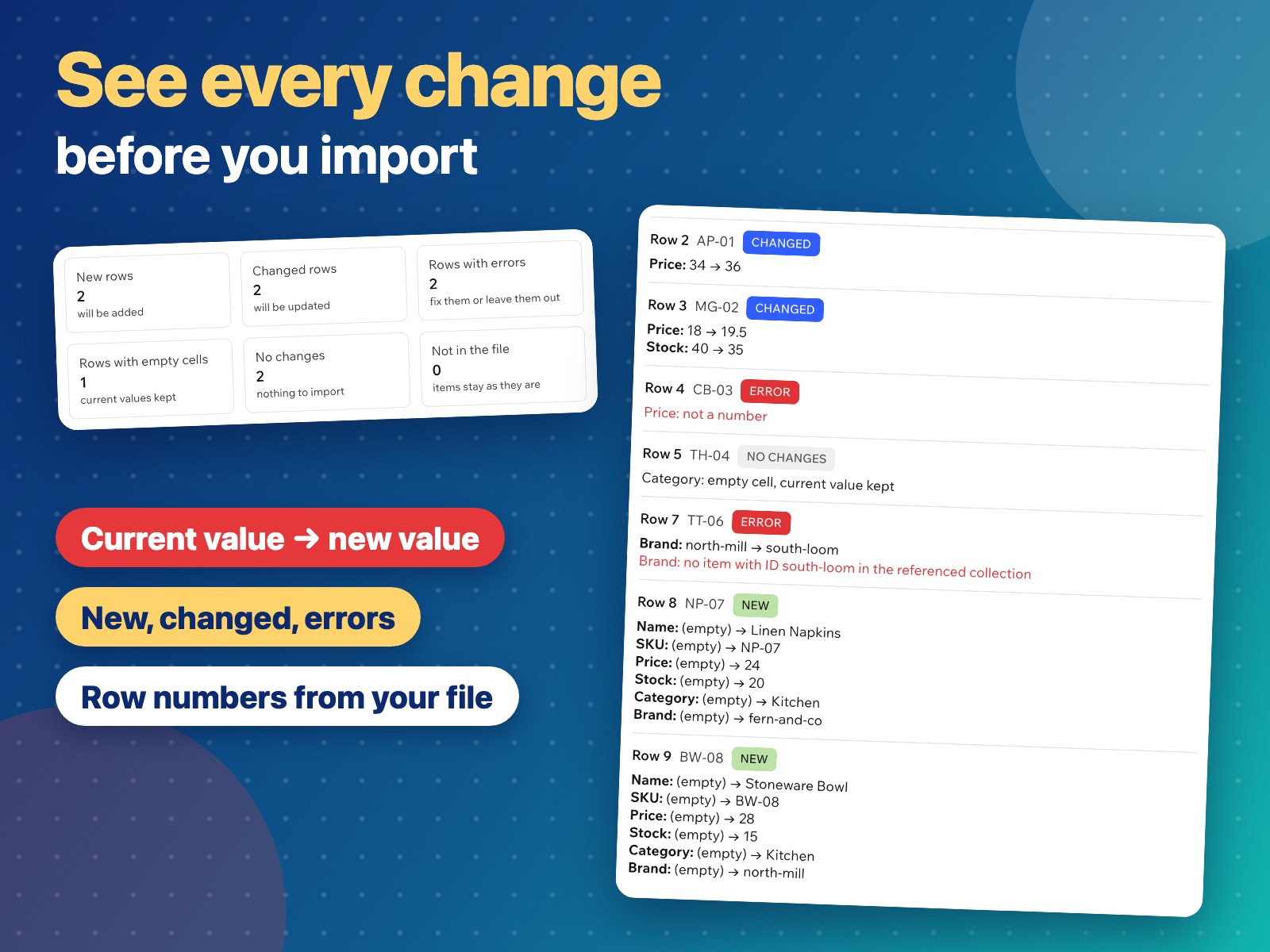
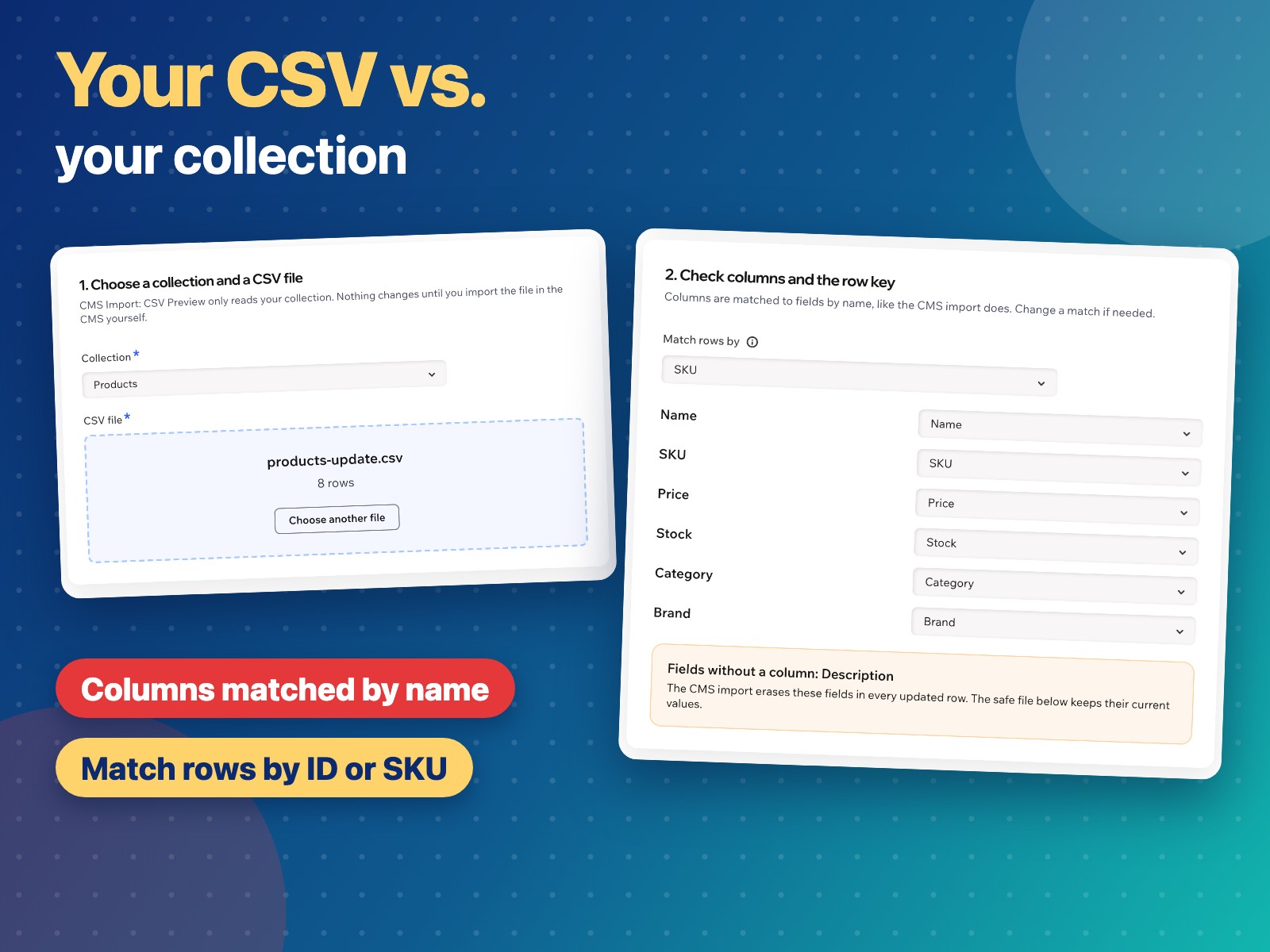

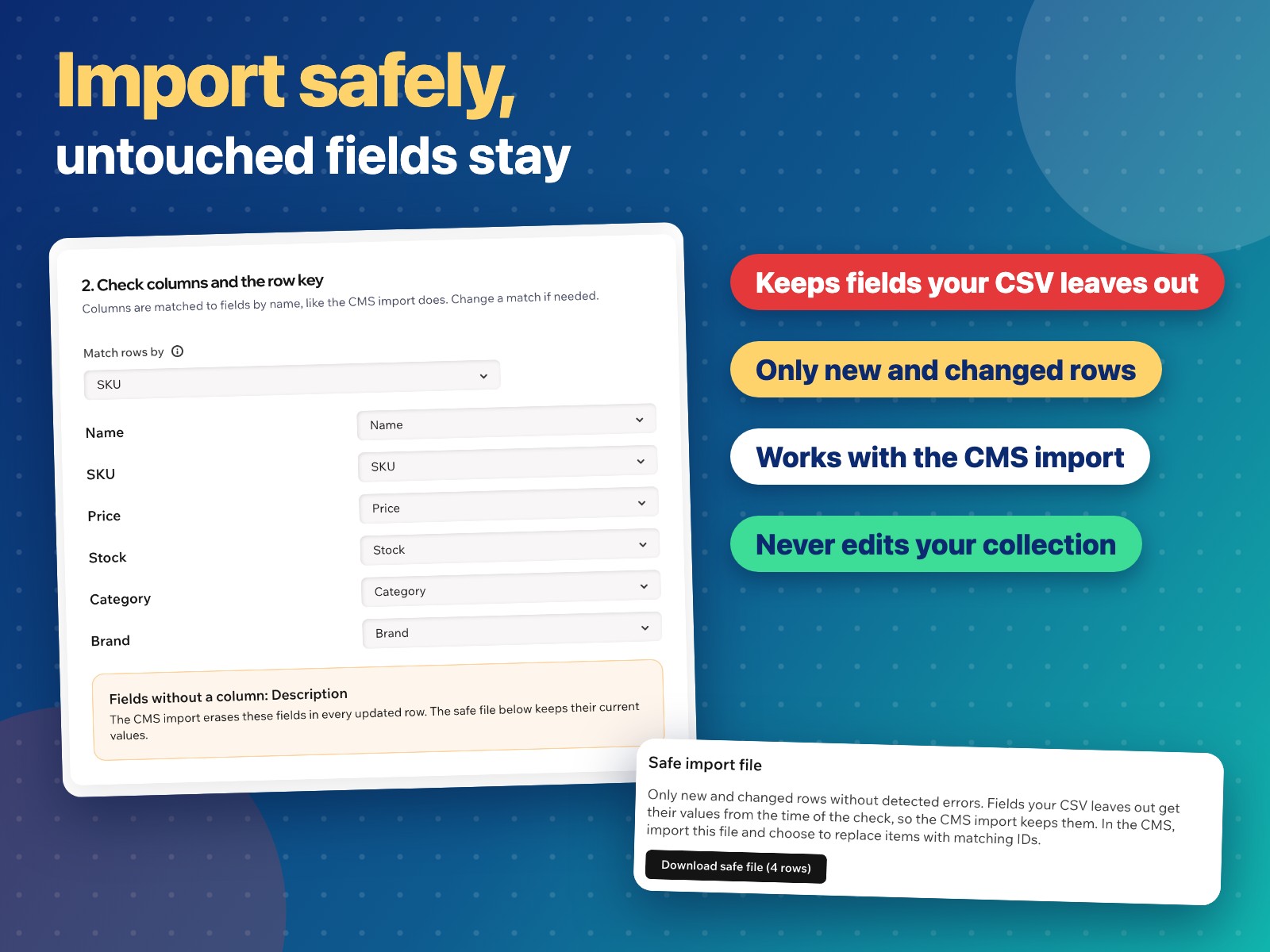
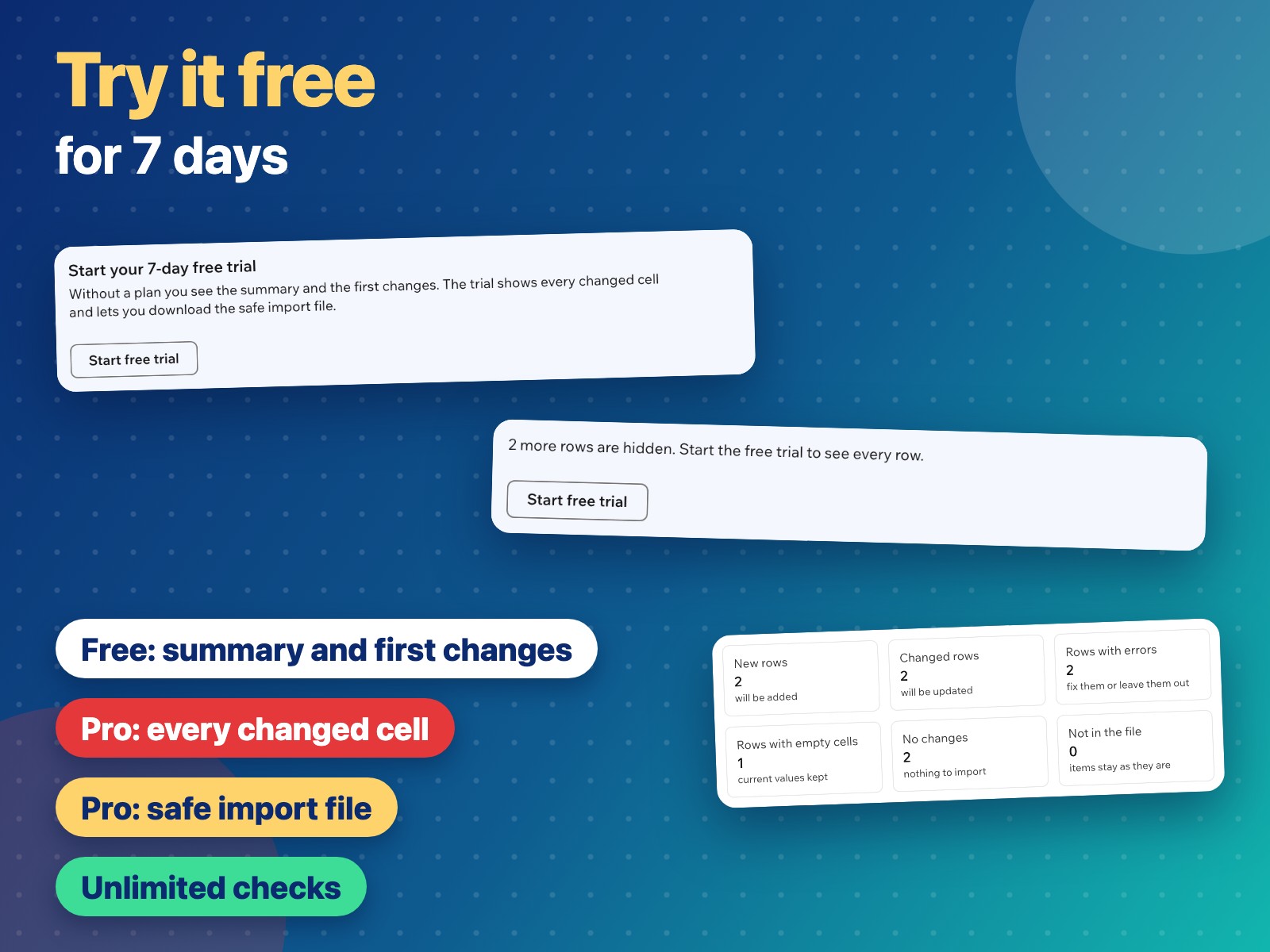
Images of the app dashboard with a made-up product catalog.
Pricing
$5.99/month
or $4.79/month billed yearly · 7-day free trial
No plan yet? Check any file and see the summary, the first 5 new or changed rows and the first error. Prices shown in USD.
No. The app only reads your collections and never edits or deletes items. Nothing changes until you import a file in the CMS yourself.
A CSV with only the new and changed rows without errors, and with every field of the collection filled in. Where your file has no column, it carries the current value, so the CMS import does not erase it. In the CMS, import this file and choose to replace items with matching IDs. It is not available for collections with fields a CSV file cannot carry, such as multi-reference fields.
Numbers, true or false, dates (YYYY-MM-DD), dates with time (ISO 8601), links, JSON fields such as objects and addresses, lists, required fields and references to items in other collections. Text fields are compared as they are. Image, video, audio and document cells are compared but not checked, because the CMS import accepts only files from the Media Manager.
Choose the field that identifies your items under Match rows by, for example SKU or slug. Otherwise every row of the file counts as a new item.
Up to 50,000 rows and 20 MB, the same row limit as the CMS import, and collections of up to 50,000 items. Save the file as CSV UTF-8; commas, semicolons and tabs all work as separators.